VM Storm Login Guide: How to Access Your Account on Mobile and Desktop
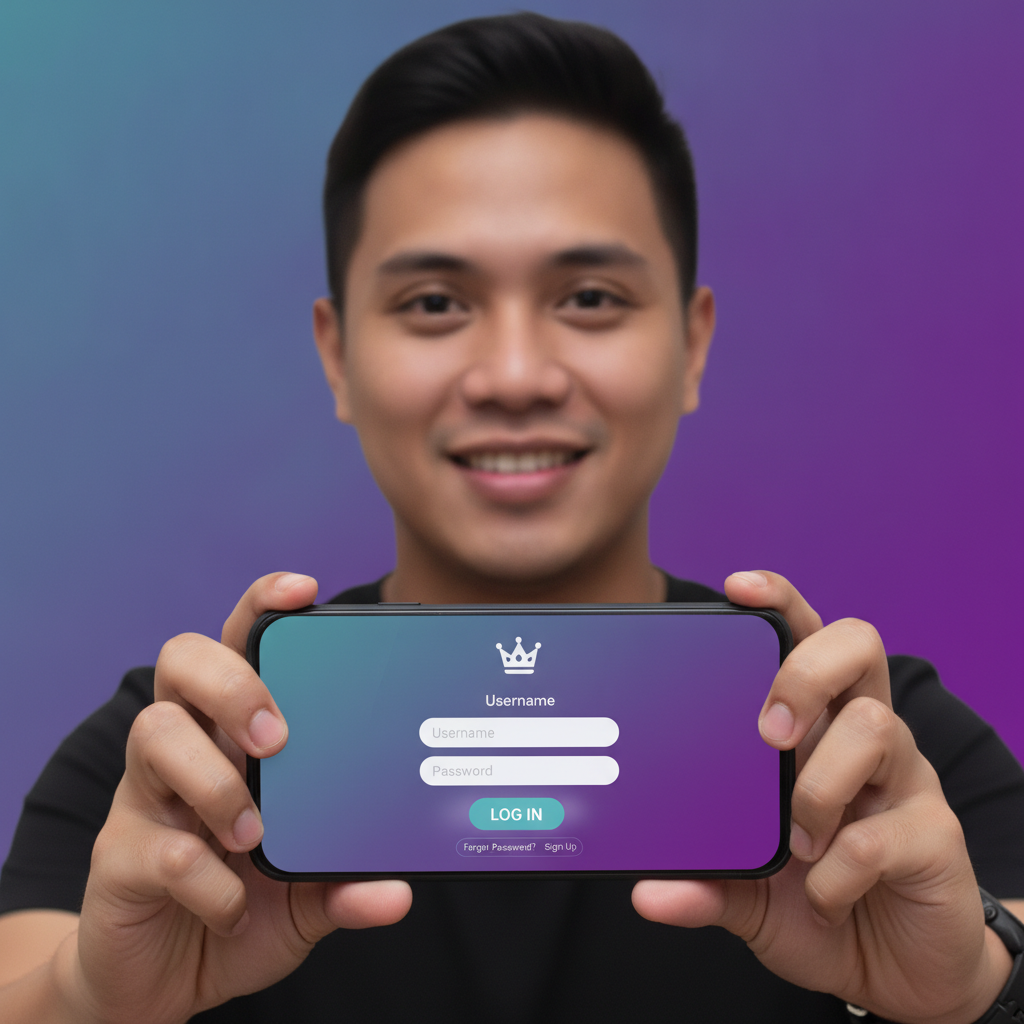
Where to Find the VM Storm Login Page
VM Storm places the login button in the top-right corner of its homepage on both mobile and desktop. When you open the site on your phone's browser, look for a button labeled "Login" or "Log In" – usually displayed as text or a small icon near the menu.
If you've saved the VM Storm site to your Android home screen, tapping that shortcut takes you straight to the homepage where the login button appears. There is no separate login URL to bookmark; the login form opens as an overlay or pop-up once you tap the button.
On desktop, the login button sits in the same top-right position. Clicking it reveals a form where you enter your username and password. The layout is nearly identical across devices, so once you've logged in on your phone you'll recognize the desktop version immediately.
Entering Your Username and Password on Mobile (Android Focus)
Most Filipino players access VM Storm on Android phones, so the mobile login flow is worth walking through step by step.
1. Tap the Login button. A small form slides up from the bottom of the screen or appears as a centered pop-up. You'll see two input fields: one for your username (or registered mobile number or email, depending on what you chose during VM Storm registration) and one for your password.
2. Enter your username. Tap the first field. Your Android keyboard will appear. Type the exact username you created when you registered. If you used your mobile number, enter it in the format you provided – usually eleven digits starting with 09. If you registered with an email address, type the full address including the @ symbol and domain.
3. Enter your password. Tap the password field. The keyboard switches to password mode, hiding each character as you type. VM Storm passwords are case-sensitive, so check that your phone's auto-capitalization hasn't added an unwanted capital letter at the start.
4. Tap the Login or Sign In button. Once both fields are filled, a button below the form – often colored in VM Storm's brand accent – completes the login. If your credentials are correct, the page refreshes and you land on the logged-in homepage, where your account balance and deposit button become visible.
Common pitfalls on Android:
- Auto-fill mistakes: Android's password manager may suggest saved credentials from other casino sites. Double-check that the filled username and password actually belong to your VM Storm account.
- Keyboard covering the button: On smaller screens, the on-screen keyboard can hide the login button. Scroll down inside the pop-up or tap outside the keyboard area to dismiss it and reveal the button.
- Copy-paste errors: If you store your password in a notes app and copy it over, make sure no extra spaces sneak in at the beginning or end.
What to Do If You're Logging In for the First Time
Your first VM Storm login happens immediately after you complete the VM Storm register process. Here's what to expect and what you should do.
Check your registered email or mobile number. Some online casinos in the Philippines send a verification link or one-time PIN before you can log in. If VM Storm sent a confirmation message, open it and click the link or copy the code into the registration form. Only after verification will your login credentials become active.
Use the exact credentials from registration. When you filled out the VM Storm register form, you chose a username and password. Write those down in a secure place – a password manager app is ideal – so you don't have to reset them later.
Log in on the same device you used to register. For your first session, it's simplest to use the same Android phone and browser. VM Storm may recognize the device and skip extra security prompts. Later, you can log in from other devices or desktop without issue.
Complete any ID verification requirements. VM Storm requires players to be 21 years old and over. During or shortly after your first login, you may be asked to upload a photo of a valid government ID – such as a Philippine passport, driver's license, or UMID – to verify your age and identity. This step is standard for legit online casino Philippines operators. Until verification is complete, some features like withdrawals may be restricted, but you can usually browse games and make your first deposit.
Make a test deposit. Once you're logged in and verified, consider making a small deposit through GCash or Maya – PHP 100 is a common minimum – to confirm that your payment method is linked correctly. This also lets you explore the slots, live dealer tables, and sports betting sections with real funds before committing a larger amount.
Keeping Your Login Secure on Your Phone
Because most Filipino players use mobile devices and make deposits in pesos through e-wallets like GCash and Maya, phone security is critical. A compromised login can lead to unauthorized bets or withdrawal attempts.
Use a strong, unique password. Avoid passwords you've used on other casino or betting sites. A strong password mixes upper- and lower-case letters, numbers, and symbols. Password manager apps – many are free on Android – generate and store complex passwords so you don't have to remember them.
Enable two-factor authentication if available. Some online casinos offer an optional second login step, such as a code sent via SMS to your registered mobile number. Check VM Storm's account-security settings after your first login. Two-factor authentication adds an extra layer even if someone learns your password.
Don't share your login details. Never give your VM Storm username and password to friends or family, even if they ask to place a quick bet. Each person who wants to play must register their own account and meet the 21+ requirement.
Log out on shared devices. If you borrow a friend's phone or use a public computer, always tap the logout button when you're done. Leaving your session open means the next user can access your balance and betting history.
Beware of fake login pages. Phishing sites copy the look of popular online casinos to steal login credentials. Always type the VM Storm URL directly into your browser or use a bookmark you created yourself. Avoid clicking login links in unsolicited text messages or social-media posts.
Keep your phone's OS and browser updated. Security patches in the latest Android releases and browser updates help protect against malware that targets saved passwords. Set your phone to install updates automatically if possible.
Use a screen lock. A PIN, pattern, or fingerprint lock on your Android phone prevents anyone who picks it up from opening your browser and finding a saved VM Storm session.
Understanding the VM Storm Login Flow
Once you've logged in successfully, VM Storm displays your account dashboard. You'll see:
- Account balance in Philippine pesos.
- Deposit button linking to GCash, Maya, bank transfer via InstaPay, or PESONet options.
- Quick links to slots and jackpot games, live dealer tables, sports betting on PBA and NBA, and bingo.
- Account or profile menu, where you can update personal details, view transaction history, and log out.
If you navigate away from VM Storm or close the browser tab, your session usually stays active for a set period – often a few hours. Opening the site again within that window takes you straight to the logged-in view without re-entering your password. After the session expires, you'll need to go through the VM Storm login steps again.
On desktop, the experience is nearly identical: click the login button, fill the form, and land on the same dashboard. Your account, balance, and game history sync across devices, so a deposit made on your Android phone will show up immediately if you log in on a laptop.
Troubleshooting Common Login Issues
Forgot your password? Tap the "Forgot Password" or "Reset Password" link on the login form. VM Storm will ask for your registered email or mobile number, then send a reset link or code. Follow the instructions to create a new password, then return to the VM Storm login page and sign in with the updated credentials.
Forgot your username? If you can't remember whether you registered with a mobile number, email, or custom username, check any confirmation messages VM Storm sent when you completed the VM Storm register process. If you still can't find it, contact VM Storm's customer support through live chat or the help section on the site.
Account locked or suspended? Repeated incorrect login attempts can trigger a temporary lock for security. Wait fifteen to thirty minutes, then try again. If the lock persists, or if you see a message about account suspension, reach out to support. Suspensions may occur if ID verification is incomplete or if the account violates VM Storm's terms.
Login button not responding? Clear your browser's cache and cookies, or try a different browser on your Android phone. Outdated cached files sometimes interfere with login forms. Restarting your phone can also resolve temporary glitches.
21+ Requirement and Responsible Play Reminder
VM Storm is available only to players who are 21 years old and over. By logging in, you confirm that you meet this age requirement and have provided accurate information during the VM Storm register process.
Online casino games, live dealer tables, and sports betting should remain a form of entertainment. Set a budget in pesos before you log in, and never deposit more than you can afford to lose. If you find yourself chasing losses or spending more time and money than planned, take a break. VM Storm and other legit online casino Philippines platforms offer self-exclusion and deposit-limit tools in your account settings. Use them if you need help managing your play.
Gambling can be addictive. If you or someone you know needs support, reach out to a local problem-gambling helpline or counseling service.
Next steps: Now that you know how to complete the VM Storm login process on your Android phone or desktop, you're ready to explore the lobby. Browse the slots and jackpot games, try a live dealer table, or place your first bet on a PBA or NBA game. Remember to start with small deposits – PHP 100 to PHP 500 – while you learn how each section works, and always play within your budget.